
Step 1: Go to Your Organization Page
-
From the Dashboard, navigate to your organization page from the “Account Admin” link in the left navigation
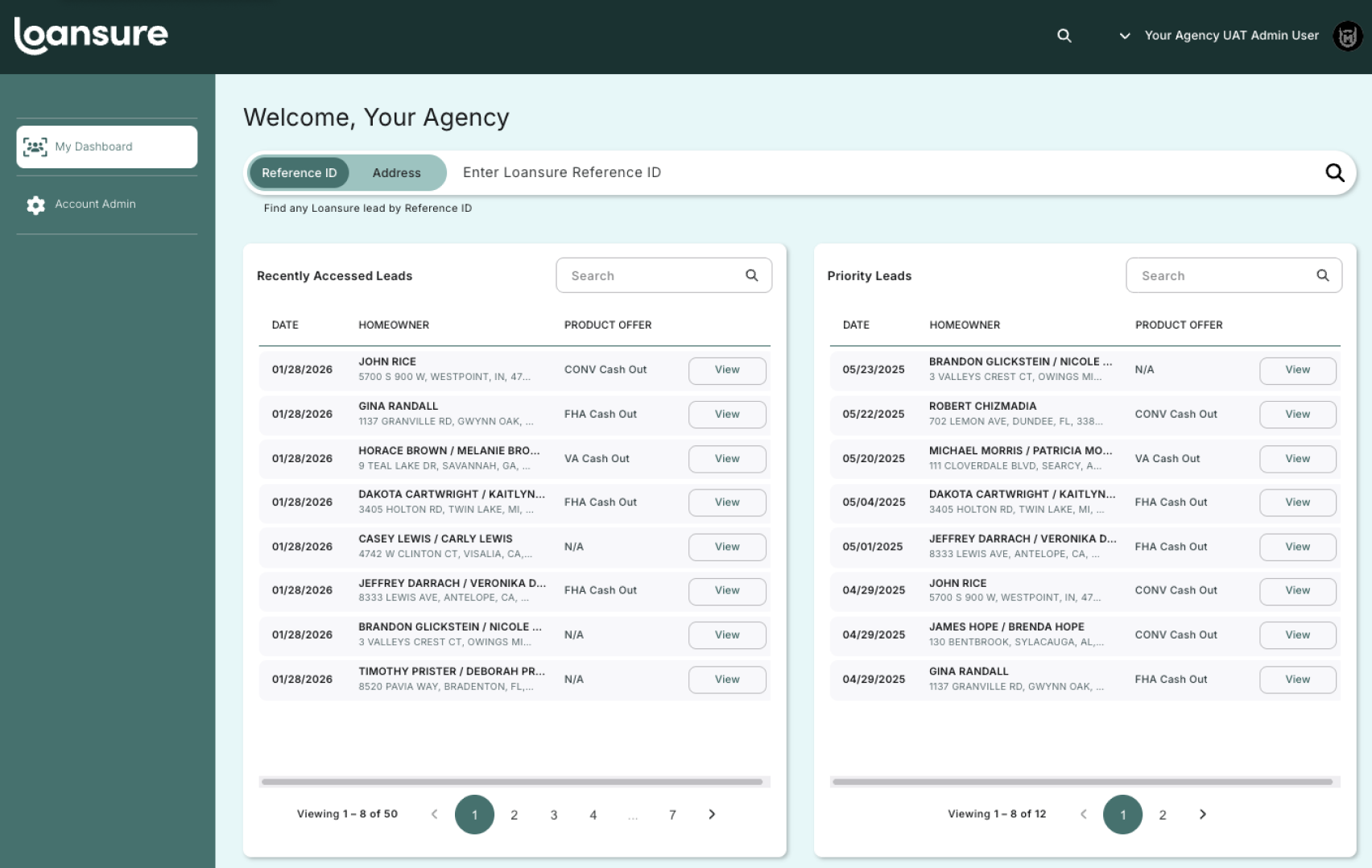
Select the "Account Admin" link in the left navigation.
Step 2: Add a New User
-
Look for a button labeled "Add User" or "+" (usually at the top right)
-
Click Add User
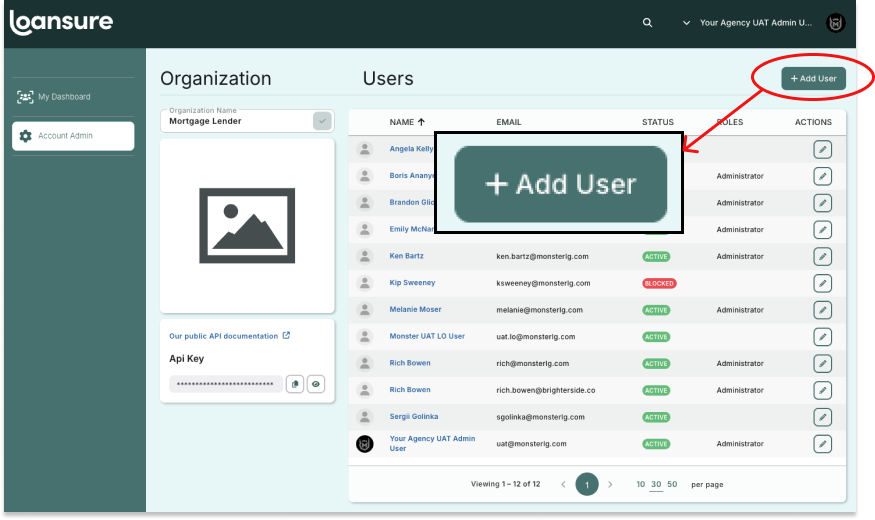
Select the "+Add User" button.
Step 3: Add A User Details
-
A form will appear.
-
Fill in the following fields:
-
First name (e.g., Mel) Last name (e.g., Moser)
-
Email Address
-
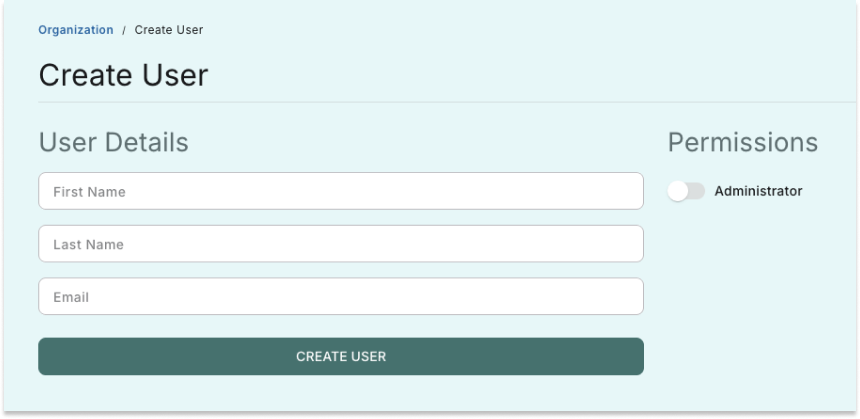
Enter user details.
How to Edit Current User Details
-
From the same Organization page, scroll or search to locate the user
-
Click the “EDIT” icon beside the user’s name
-
Update the necessary information (e.g., name, email, access level)
-
Click “SAVE” to apply the changes
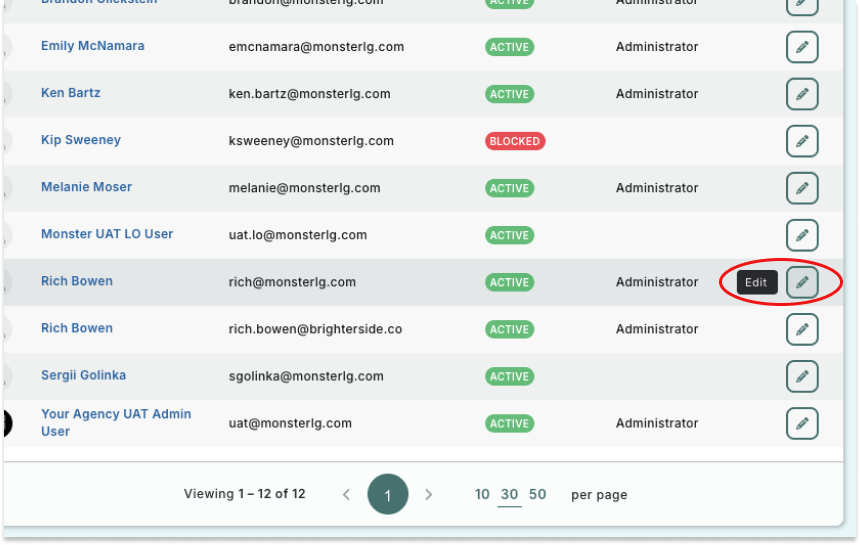
Select the "Edit" button when hovering over a user to edit their details.