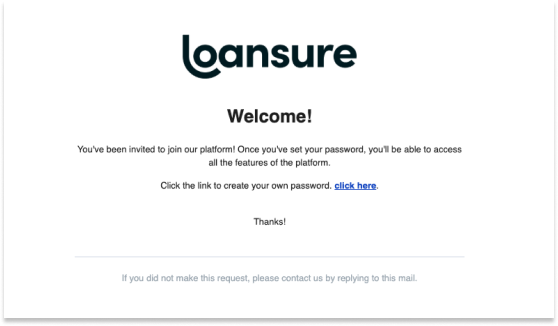
You'll receive an email from no-reply@monsterlg.com with a secure link to set your password and activate your account. This email may appear in your inbox or junk folder depending on your email provider's spam filters. Once you follow the link, you'll be guided through creating a secure password and confirming your setup, allowing you access to the Loansure platform.
1. Check Your Email
-
You will receive an email invitation from: no-reply@monsterlg.com
-
Subject line: Set your password for Loansure or similar
-
Check your Inbox or Junk/Spam folder in case it’s filtered.
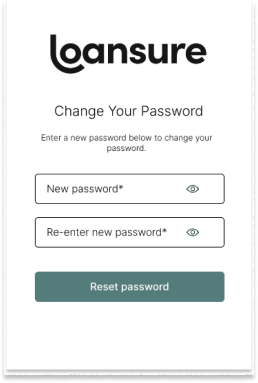
2. Set Your New Password
-
Click the link in the email to access the password setup screen.
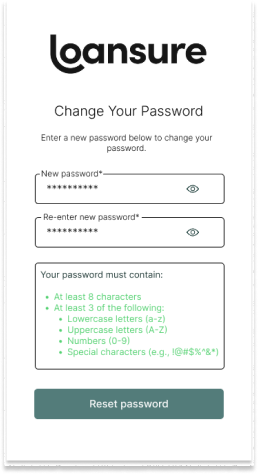
3. Enter & Confirm Your Password
-
Password must meet the following requirements:
- At least 8 characters
- At least 3 of the following:
- Lowercase letters (a-z)
- Uppercase letters (A-Z)
- Numbers (0-9)
- Special characters (e.g., !@#$%^&*)
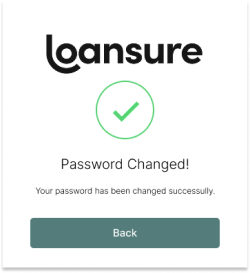
4. Password Changed Confirmation
- Once submitted successfully, you'll see the confirmation screen.
- Click "Back" to return to the login page.